Pages

Showing posts with label USRP. Show all posts

Monday, 2 December 2013

Building USRP Hardware Driver software (UHD) from Source

Get the Source Code:
The UHD source is stored in a Git repository. To download it, follow these instructions:
git clone git://github.com/EttusResearch/uhd.git

All of the releases are associated with tags in the repository. Link is is given bellow:
https://github.com/EttusResearch/UHD-Mirror/tags

Build Instructions (Unix) follow the instruction on the link:
http://files.ettus.com/uhd_docs/manual/html/build.html#build-instructions-unix


Setup or change USRP N210 IP address in Ubuntu

You may need to change the USRP2's IP address for several reasons:
  • to satisfy your particular network configuration 
  • to use multiple USRP2s on the same host computer
  • to set a known IP address into USRP2 (in case you forgot)
Connect network cable to port physically. Then, setup the host IP to enable the communicate with USRP N210 whose default IP is 192.168.10.2

To change the USRP2's IP address, you must navigate to the following folder:
cd /usr/local/lib/uhd/utils

Then run the following command by providing the necessary parameters:
sudo ./usrp2_recovery.py --ifc=<Interface> --new-ip=<New IP address>

Note: The <interface> is usually something like eth0. You can discover the names of the network interfaces in your computer by running ifconfig without any parameters. <New IP address> is the IP address you want to assign to the USRP2 device.

Then, turn off power switch and reboot the USRP2 device. Now type the following command in the terminal to see the changes
sudo uhd_find_devices

or you can ping to the USRP2 IP address. 

ping <New USRP2 IP Address> 

You should be able to see the response of USRP N210, otherwise turn off your firewall as 'sudo ufw disable' and check the network connection.

Good Luck..:)

Friday, 25 October 2013

Tutorial on UHD Commands for Finding USRP1 or USRP2 Device Details

This tutorial gives an overview of the commands for finding the USRP devices details. This tutorial is applicable for all USRP devices (i.e. USRP1, USRP2 etc). For higher serise USRP devices, the device address argument will change.

To start experiment with USRP devices, we have know the device serial/address. The address/serial details can obtained in two different ways.

First and foremost follow the steps listed bellow:
Step 1: connect USRP device to system through USB cable.
Step 2: Switch on power supply for device.
Step 3: Open the terminal window.

Method 1:
In the terminal window type the following command. It will prompt for the root user password and enter the password. If USRP 1 device is connected, its serial number will be seen on terminal. Please note down the the device serial number/address, as it will be used in different places.
 Command: sudo uhd_find_devices

Method 2:
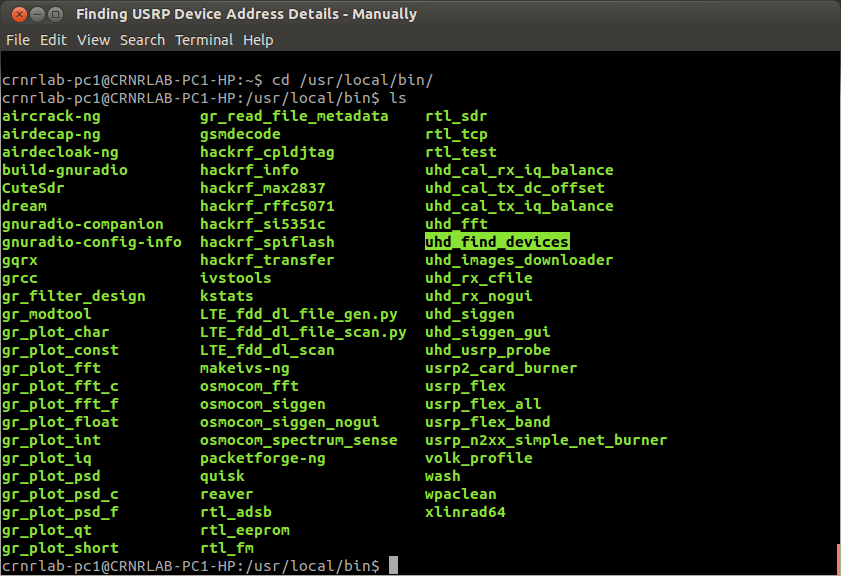
The alternative to the above command is to execute the command manually. First navigate to the "/usr/local/bin" directory, where the executable is present (shown in figure 2.).


Execute the object file to obtain the device details i.e. "./uhd_find_devices". If the device is connected, it will print the details on the terminal screen, as shown in figure 3.

All the best and thank you..!!